
One search across every source
The DAM, SharePoint, Google Drive, Box, the ECM: one search finds what any of them holds, by keyword, by meaning or by a picture, with filters from your own metadata.

A media download portal is your brand's home for approved media: where everyone you work with finds and downloads images, video and documents from the systems you already run, in the formats they need, with nothing copied.
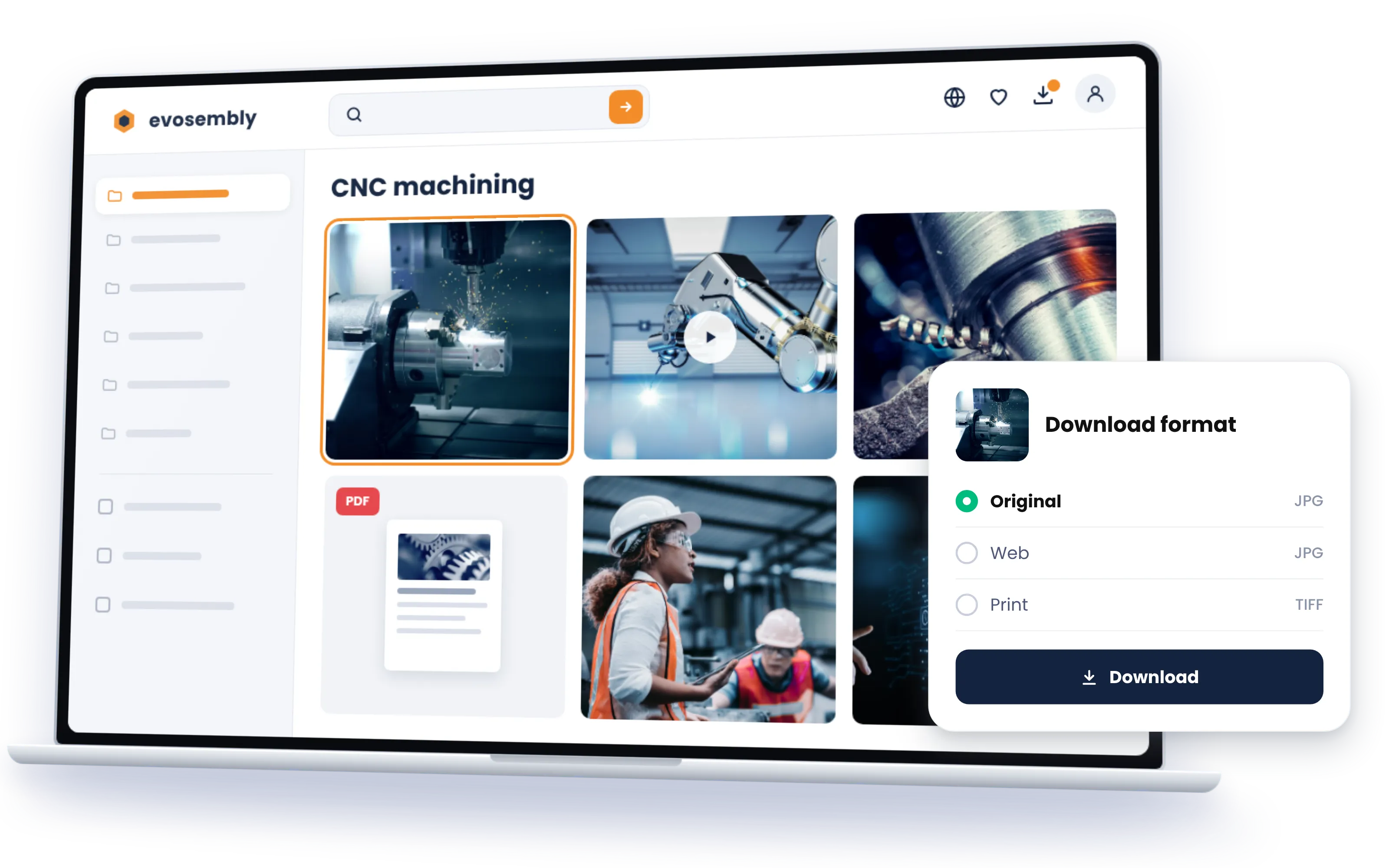
The systems that keep your media are the home of the team that manages it. The media center extends them to everyone else: colleagues, agencies, retailers, partners, press. They search once across every source and download in the format they need, and the systems underneath stay exactly as they are.
The DAM, SharePoint, Google Drive, Box, the ECM: one search finds what any of them holds, by keyword, by meaning or by a picture, with filters from your own metadata.
The renditions your source system already produces are there to download. If your source has no renditions of its own, we add them. For anything more, our data processors generate new things from your assets: PDF presentations, product sheets, and more.
Users gather what they need into a collection as they go, download it in one go, or turn it into a share link for the people who need the same files.
Downloads, top assets and search terms per portal and per audience, so you know which material works and what people looked for and did not find.
Connect Claude, ChatGPT, Copilot or any MCP client to your media download portal. The portal answers the requests that used to land in the content team's inbox: the hero image of the spring campaign, 16:9, for print; all product shots of the new series as a zip; the version without the claim. Each assistant sees what its user may see, and the file arrives in the rendition asked for. With Sminted AI, the assistant answers the way your content team would.
How Sminted AI works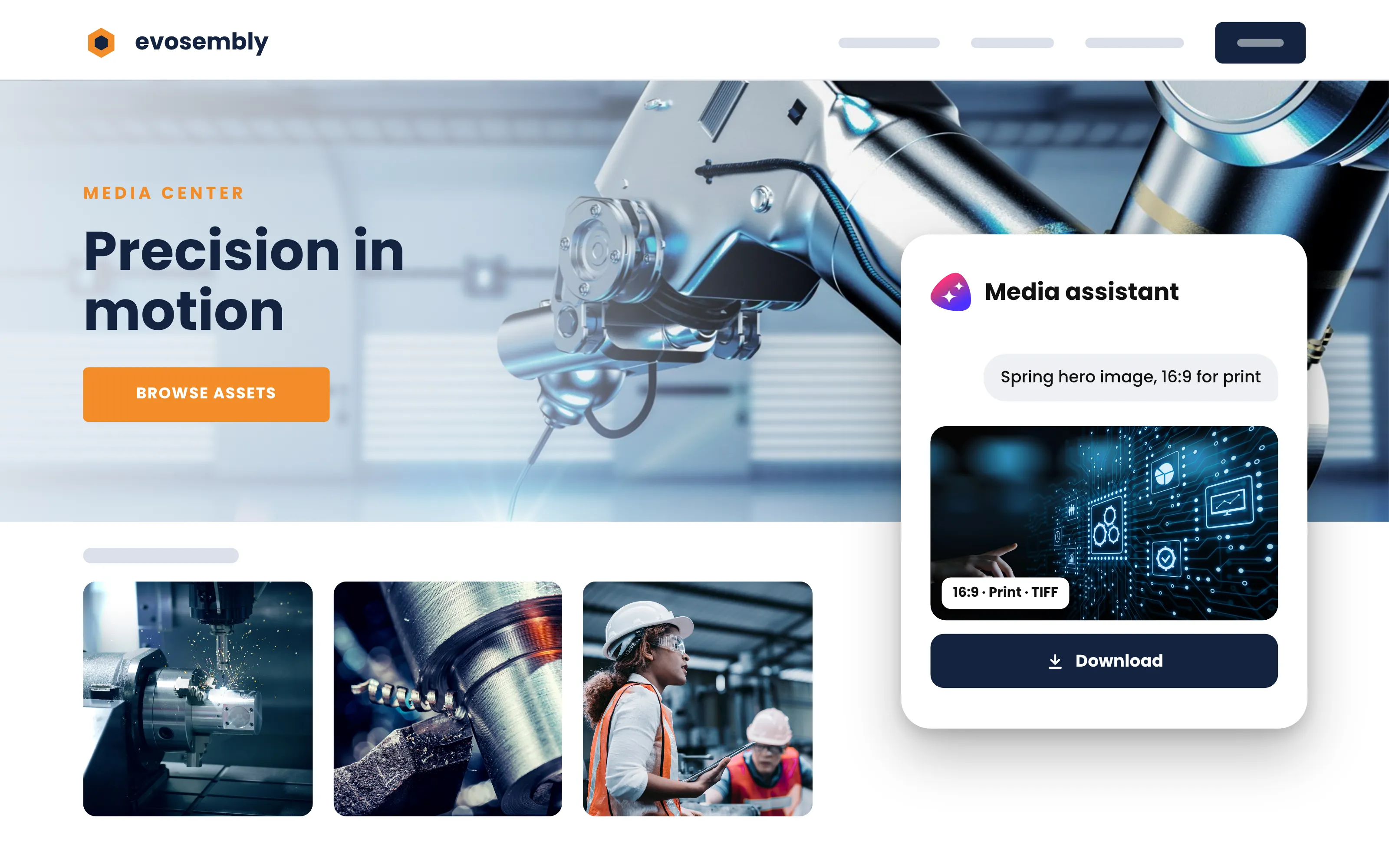
01
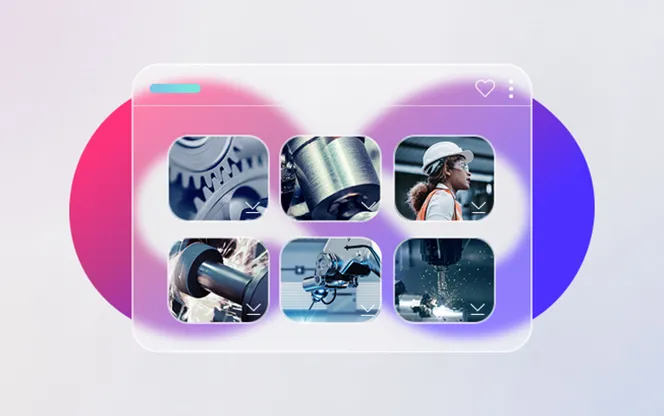
The DAM, SharePoint, Google Drive, Box, the ECM, whatever holds your media today. Several at once, and nothing is copied.
02
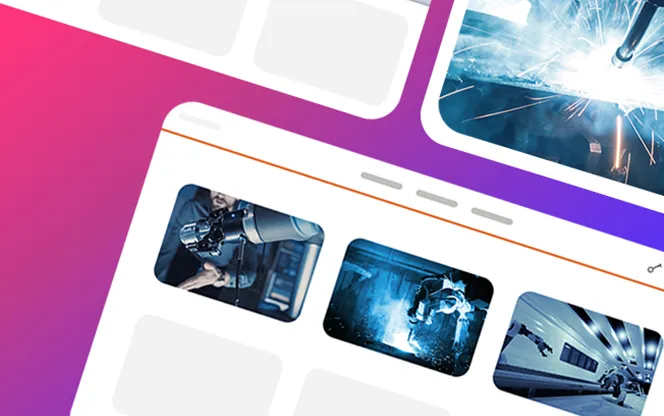
A finished media center in days, no code. Structured by topic, brand, campaign or audience; your design, your domain.
03
Public, SSO, by invitation or mixed, with permissions per area. Your systems stay the home for the team that manages your media; the portal extends them to everyone else.
Somfy's retailers needed product imagery and marketing material, and had no front door of their own to the place it was kept. A branded media center on top of the same source, with SSO for the retailers, gave them one: downloads rose by 57 % in eight months, and the brand looked the way Somfy wanted it to look wherever a retailer met it.
Read the story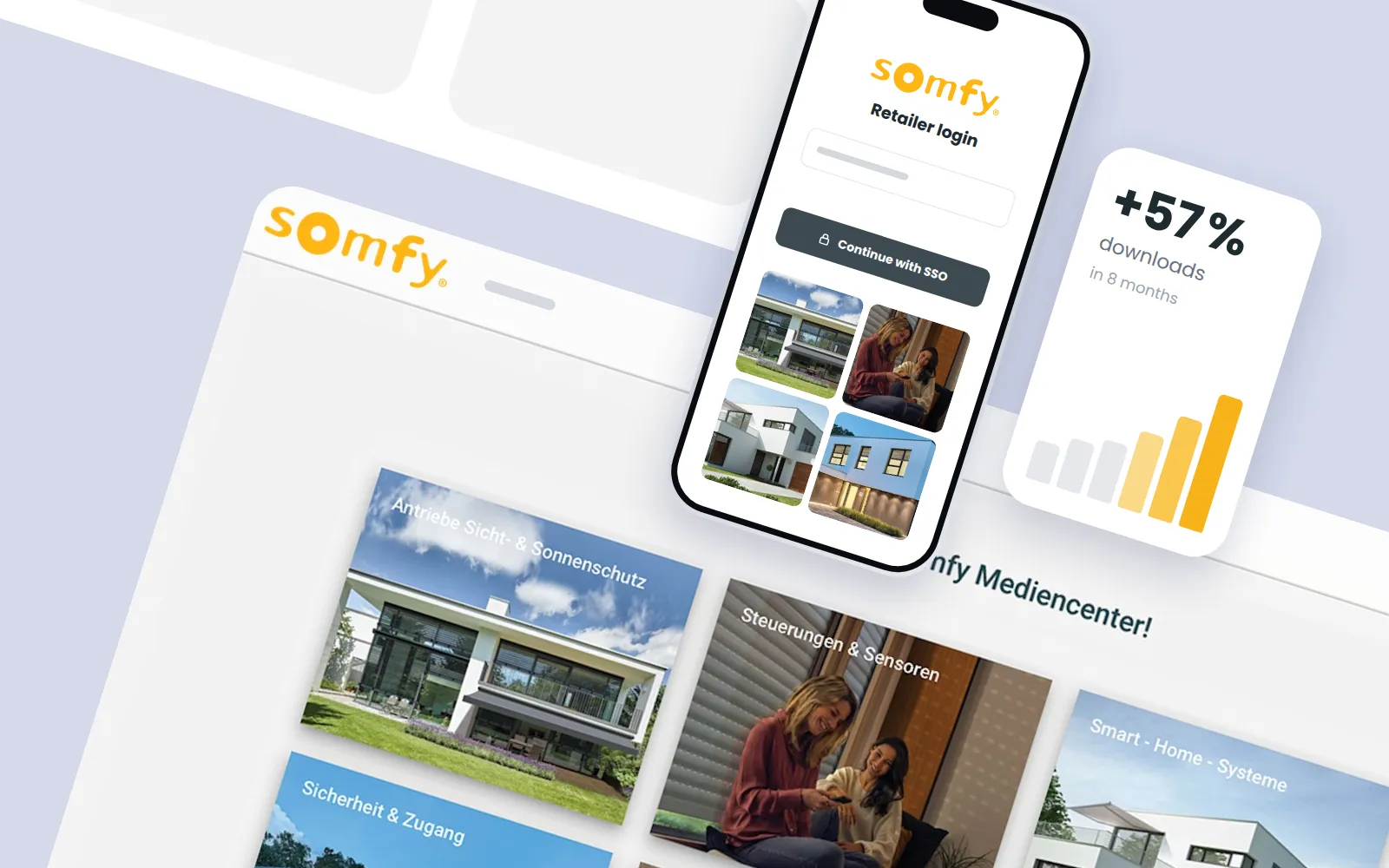
Screens from a media center built with Smint.io: search, collections, formats, requests, metadata and the places where the template ends.
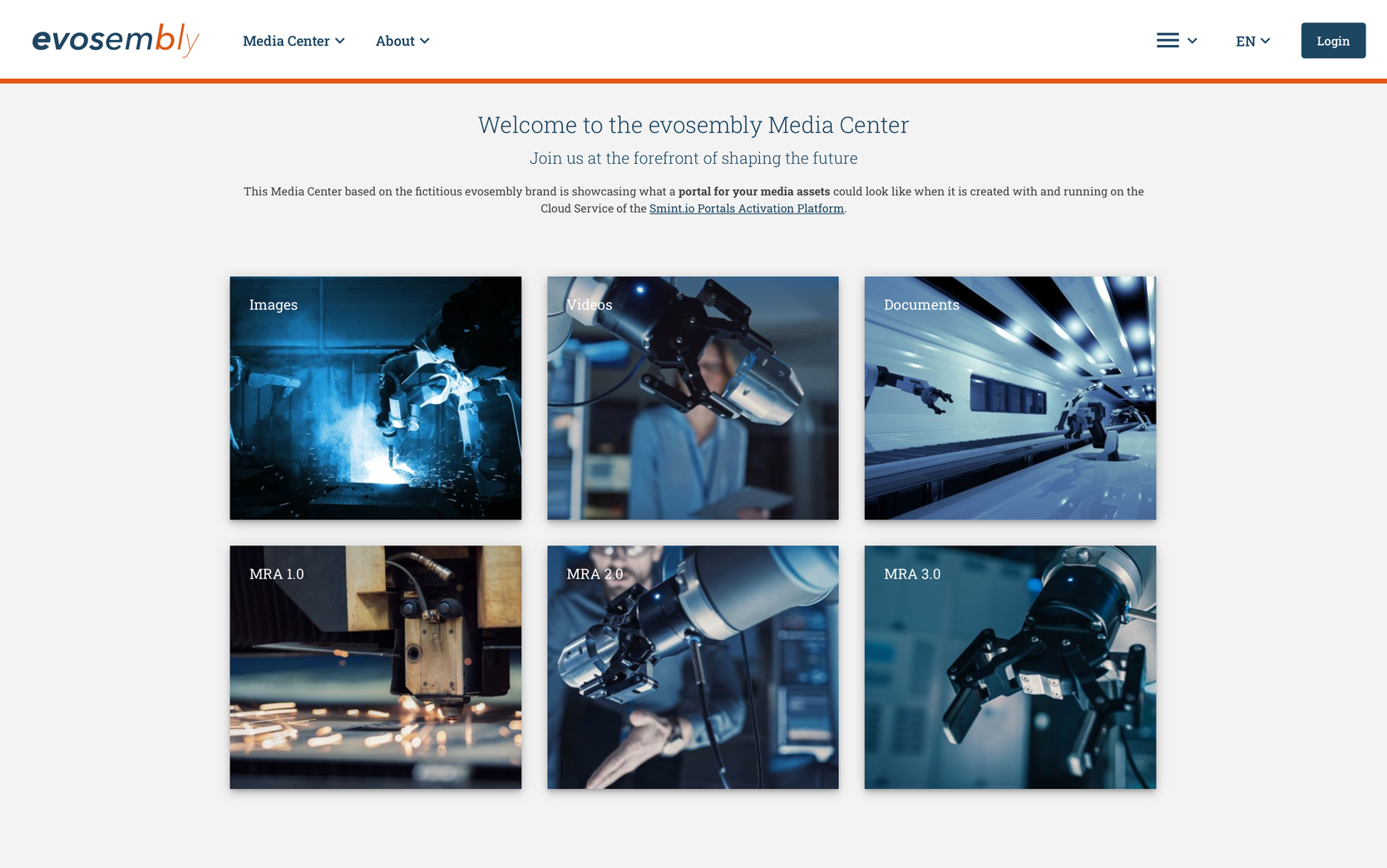
One search across every source, with filters from your own metadata; semantic and visual search included.
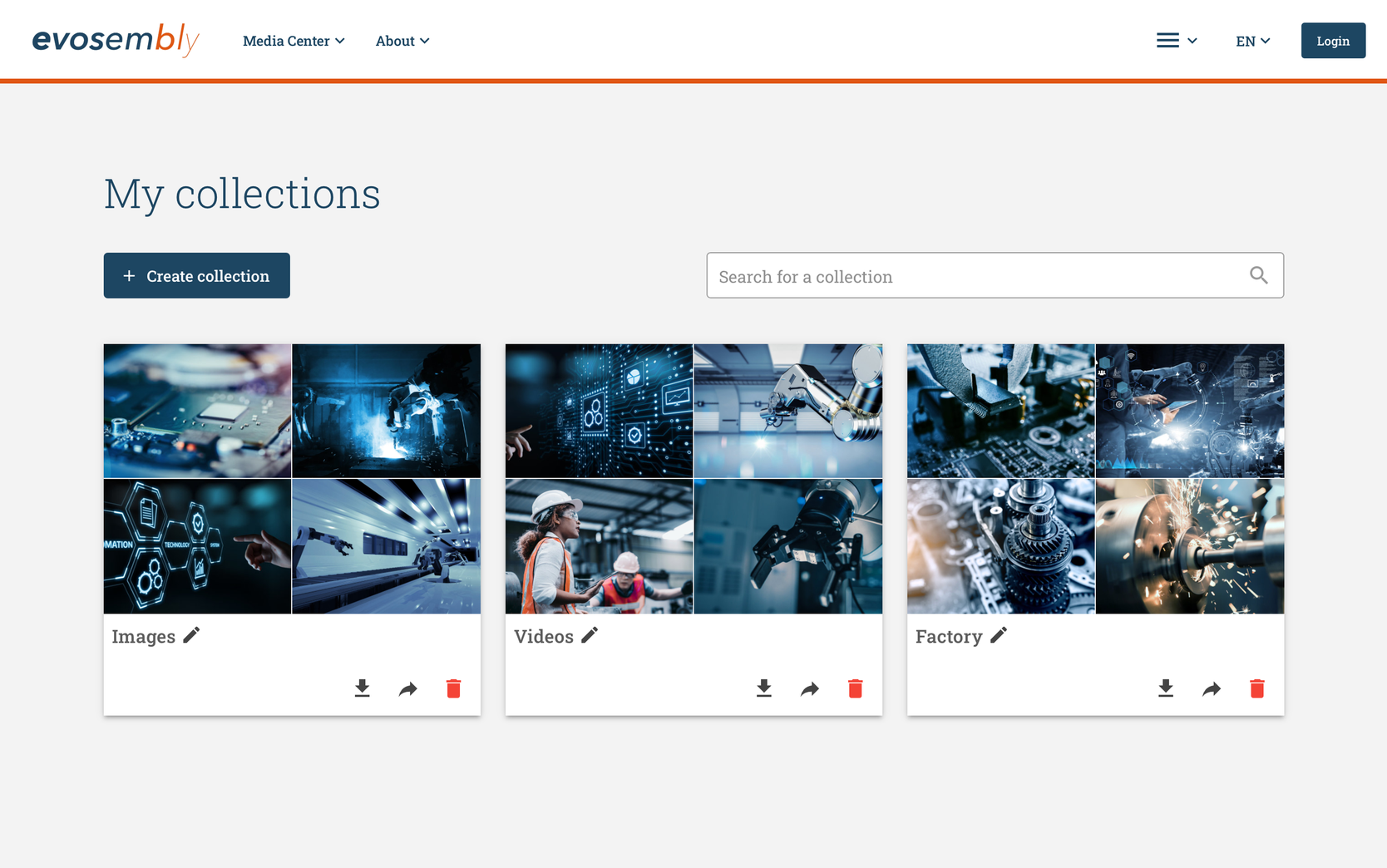
Assets gathered into a collection while browsing; one bulk download or one share link.
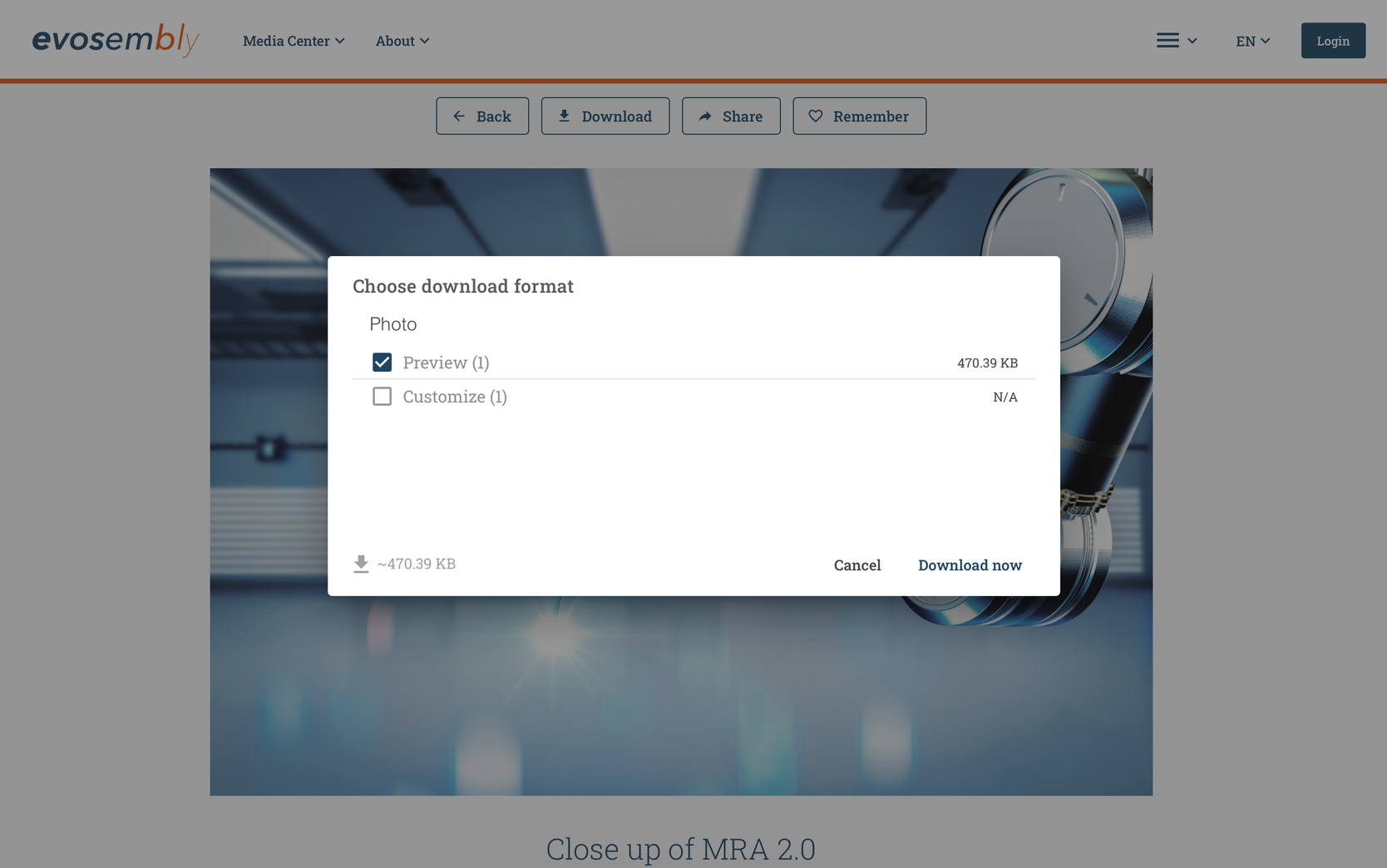
The source system's renditions, our own where the source has none, and data processors for the advanced cases.
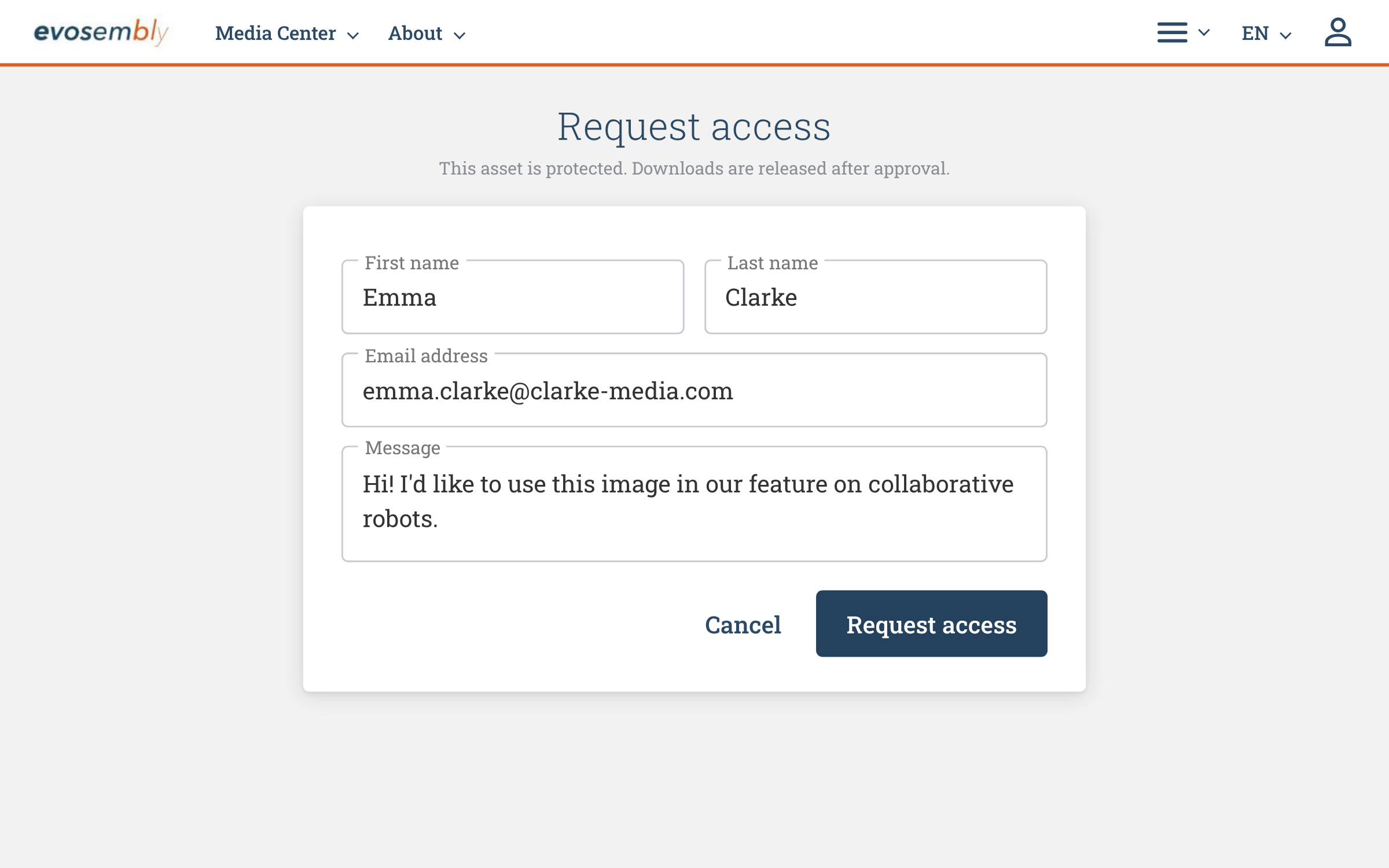
Protected material on request, with an approval step where you want one.
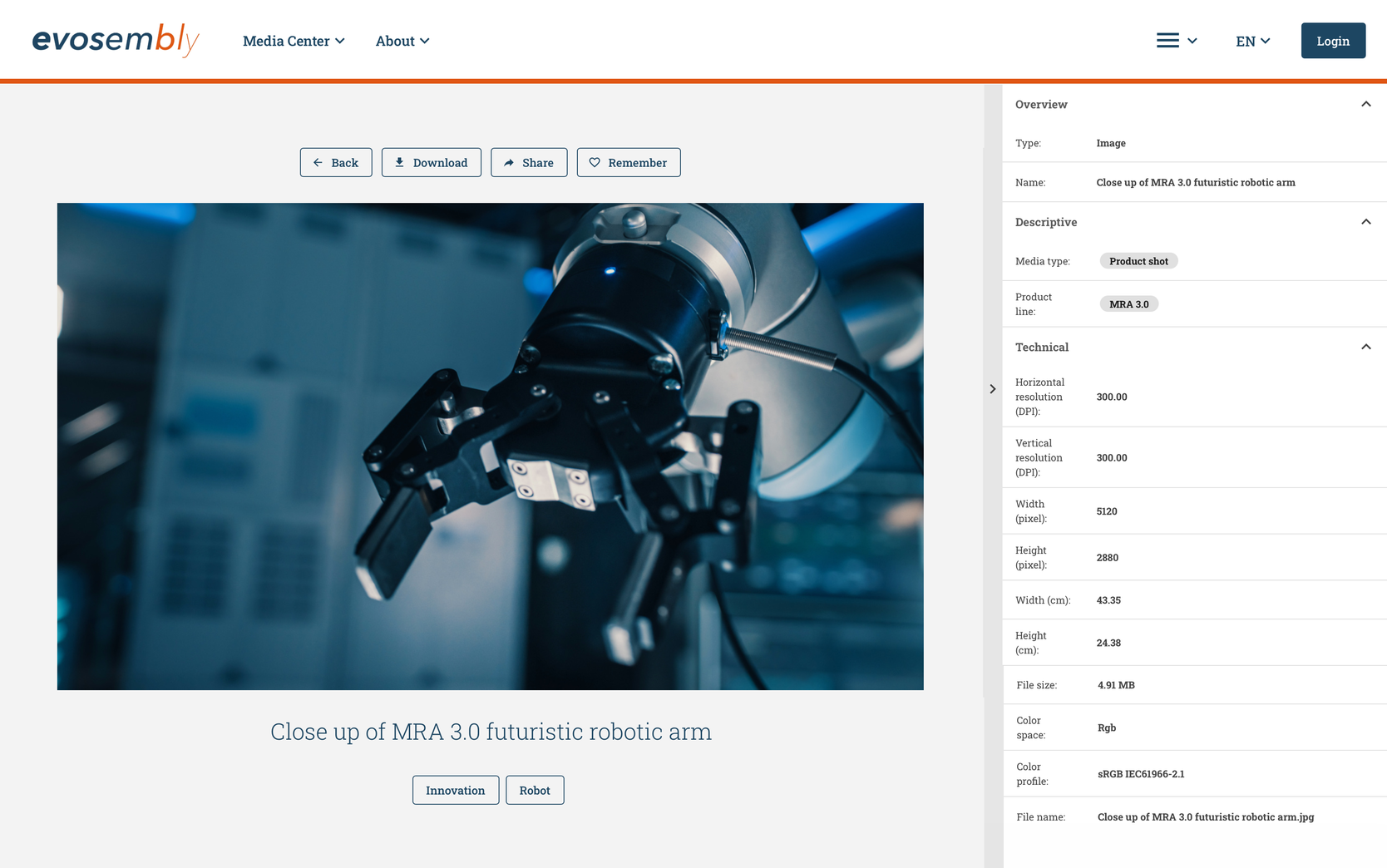
Captions, rights, usage notes and product references, as they are in the source.
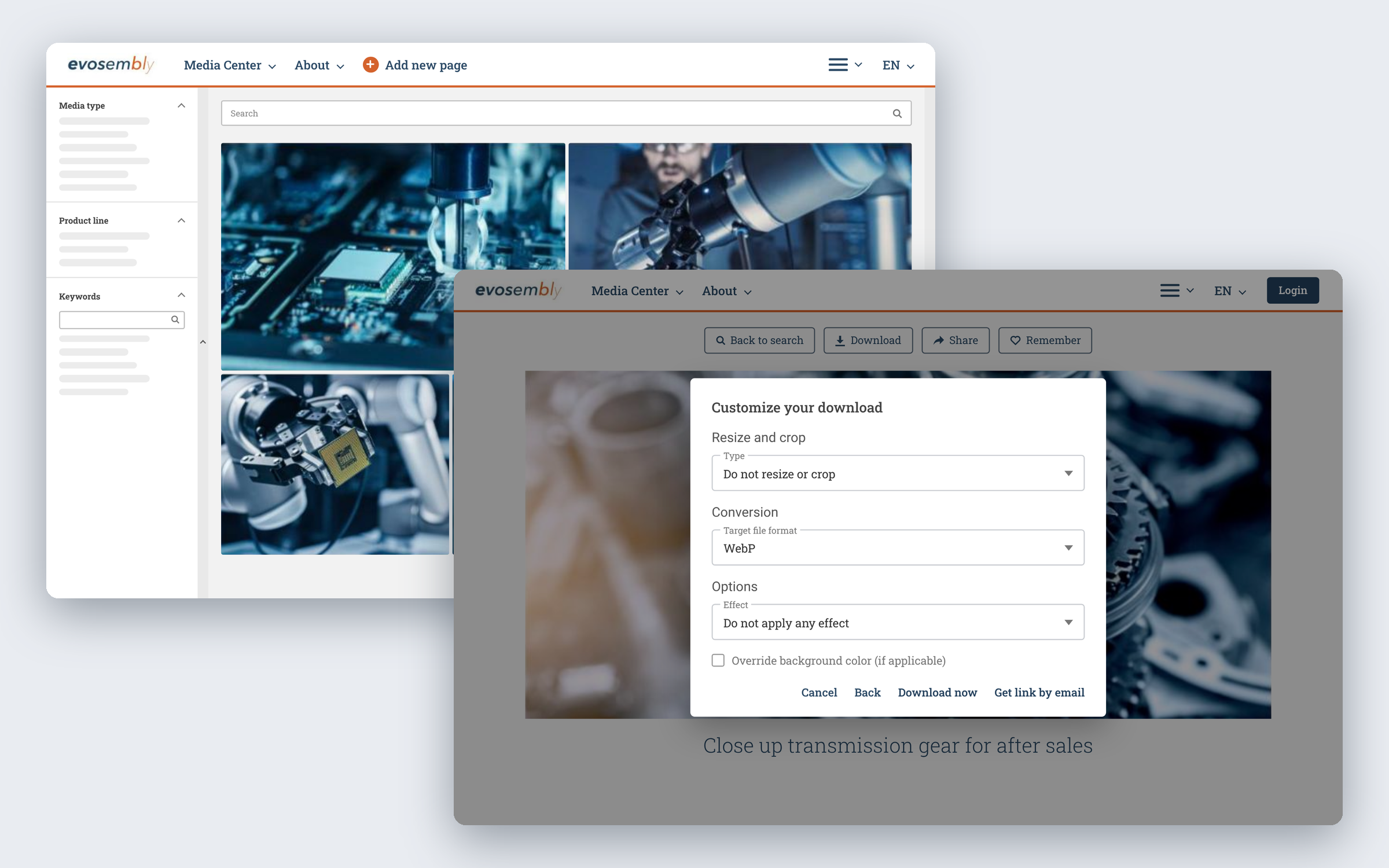
Custom downloads, data processors, your own components, where the template ends.
Here are three of our public portals. Evosembly is our fictional robotics maker, a media center fed by thirteen connected sources; OOCHIALI, our fictional sunglass brand, has campaigns, products and logos; and our own media center holds what we publish. Open one in your browser, or connect your AI assistant to it and ask it something.
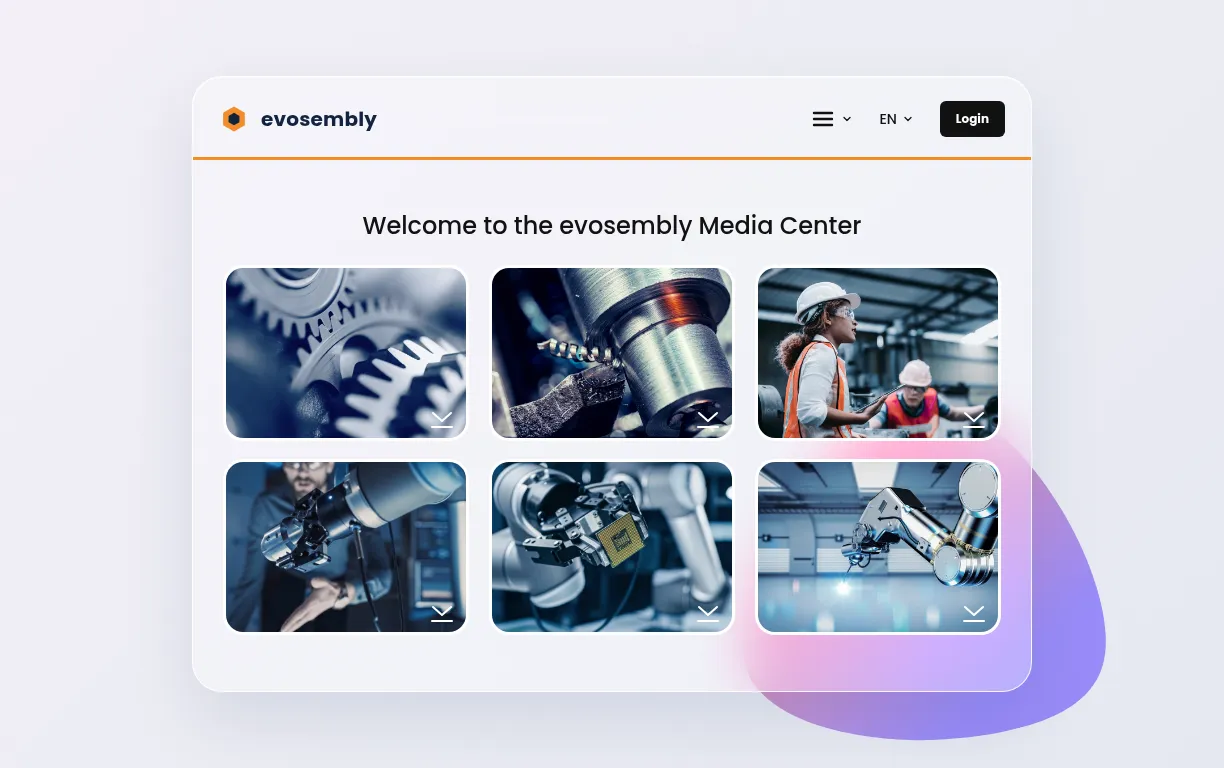
Our fictional robotics maker: images, video and documents from thirteen connected sources.
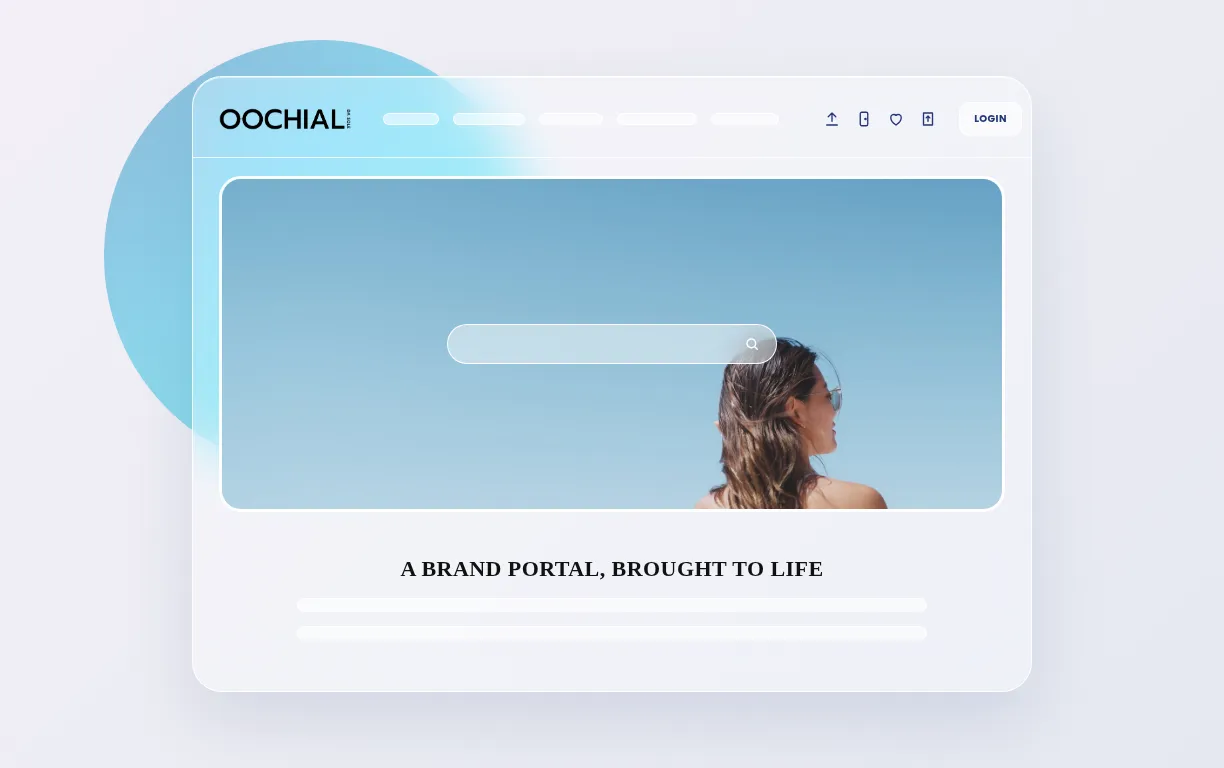
Our fictional sunglass brand: campaigns, products, logos and releases.
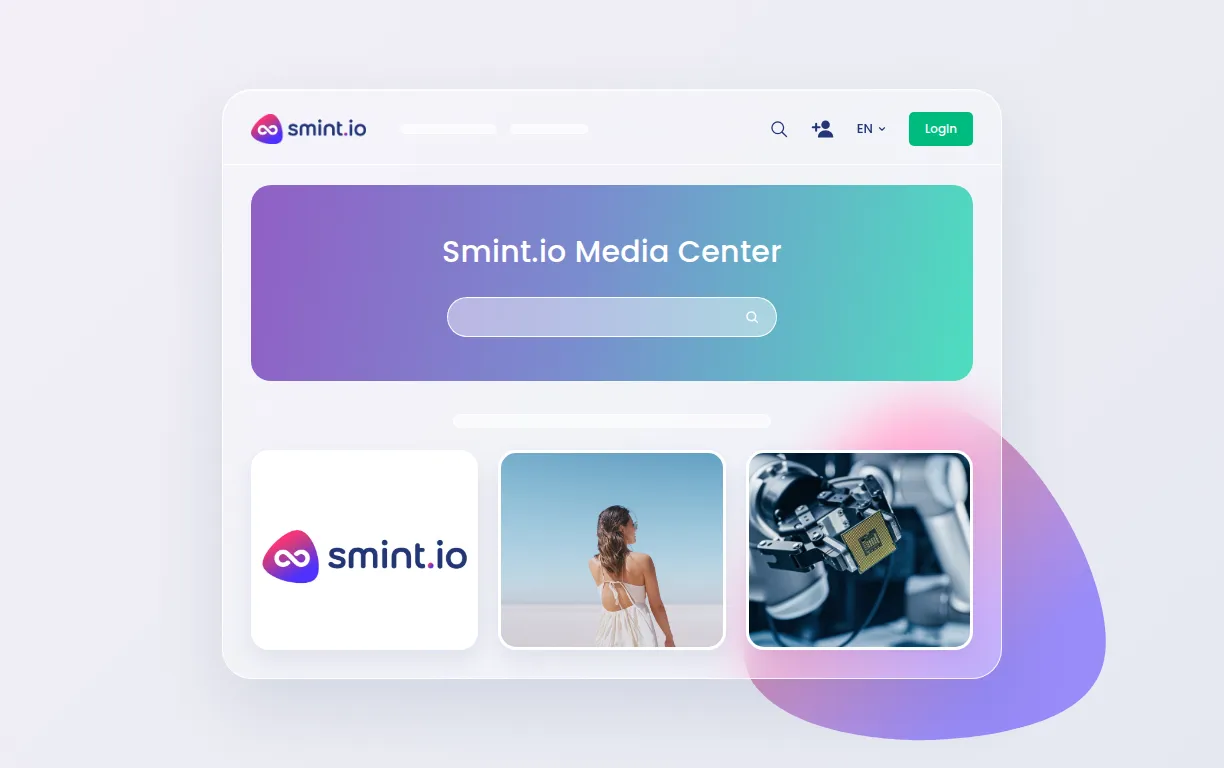
Our own media center: product images, videos, webinars.
More than 10,000 product images on SharePoint, served to retailers around the clock; searches up 48 %, downloads up 26 %.
A central product asset portal with semantic and visual search on the existing Cloudinary setup; product sheets generated as extra download renditions.
A public resource center for architects, dealers, agents, partners and press on Thron, an employee portal beside it; each region sees its own content, downloads up 40 %.

Our Asset Library has made a big leap forward. We chose Smint.io because they are not just a solution provider, they are a forward-thinking, customer-focused partner who truly supports our growth.
Neither. A media center is a live view of your sources, in your brand and on your domain. Access is set per area: public, by invitation, through SSO, or mixed. Your source systems stay untouched, and nothing expires the way a link does.
Nothing is copied. The portal reads from the systems you already run, so a file replaced or retired in the source is replaced or retired in the portal at once, in every collection it was part of.
Yes. Search and downloads are served from the platform's own index and delivery network, not through your source system's API, so its rate limits and its load never reach your audience, and a 2 GB video downloads as it should.
Yes, on three levels. The renditions your source system already produces are served as they are. If your source has no renditions of its own, we add them: sizes, crops, file formats, background removal, single or in bulk, streaming formats for video. And for anything more, our data processors generate new things from your assets on the fly: PDF presentations, product sheets, asset overviews, and more.
Yes, any of them. Every portal exposes its own MCP server through Sminted AI, so Claude, ChatGPT, Copilot or your own agents search the media center and fetch the approved file in the rendition asked for, with exactly the permissions that person has. Whatever your teams build or automate on top, the media center is its single source of truth.